1. The file is too big
Uber's menu photo guidelines allow files up to 10 MB. Photos straight from a new phone can be larger.
Fix: export the photo again at a smaller size or a little more compression. At 2880 × 2304 pixels a JPG is normally well under the limit.
2. The format isn't accepted
Uber accepts JPG, and also PNG and GIF for menu items. iPhones often save photos as HEIC, and some apps save as WEBP. Those aren't on Uber's list.
Fix: save or share the photo as a JPG. On an iPhone you can set the camera to save JPGs: Settings, then Camera, then Formats, then Most Compatible.
3. The photo is too small or the wrong shape
Uber needs at least 550 pixels wide and 440 pixels tall, and recommends 2880 × 2304 pixels, a 5:4 landscape shape. A screenshot, a photo saved from a chat app or a tall portrait photo often fails here.
Fix: use the original photo, not a copy from WhatsApp or Messenger, and crop it to 5:4 with the dish in the middle. The Uber Eats photo size guide has every size in one table.
4. It uploads, then gets rejected
Every photo is reviewed. According to Uber's guidelines, photos are turned down for things like:
- Text, prices, discounts or banners on the image.
- Logos or watermarks.
- More than one menu item, unless they're sold together.
- People or faces (hands holding the food are fine).
- Blurry, dark or very small photos.
- Stock photos, or photos that aren't your dish.
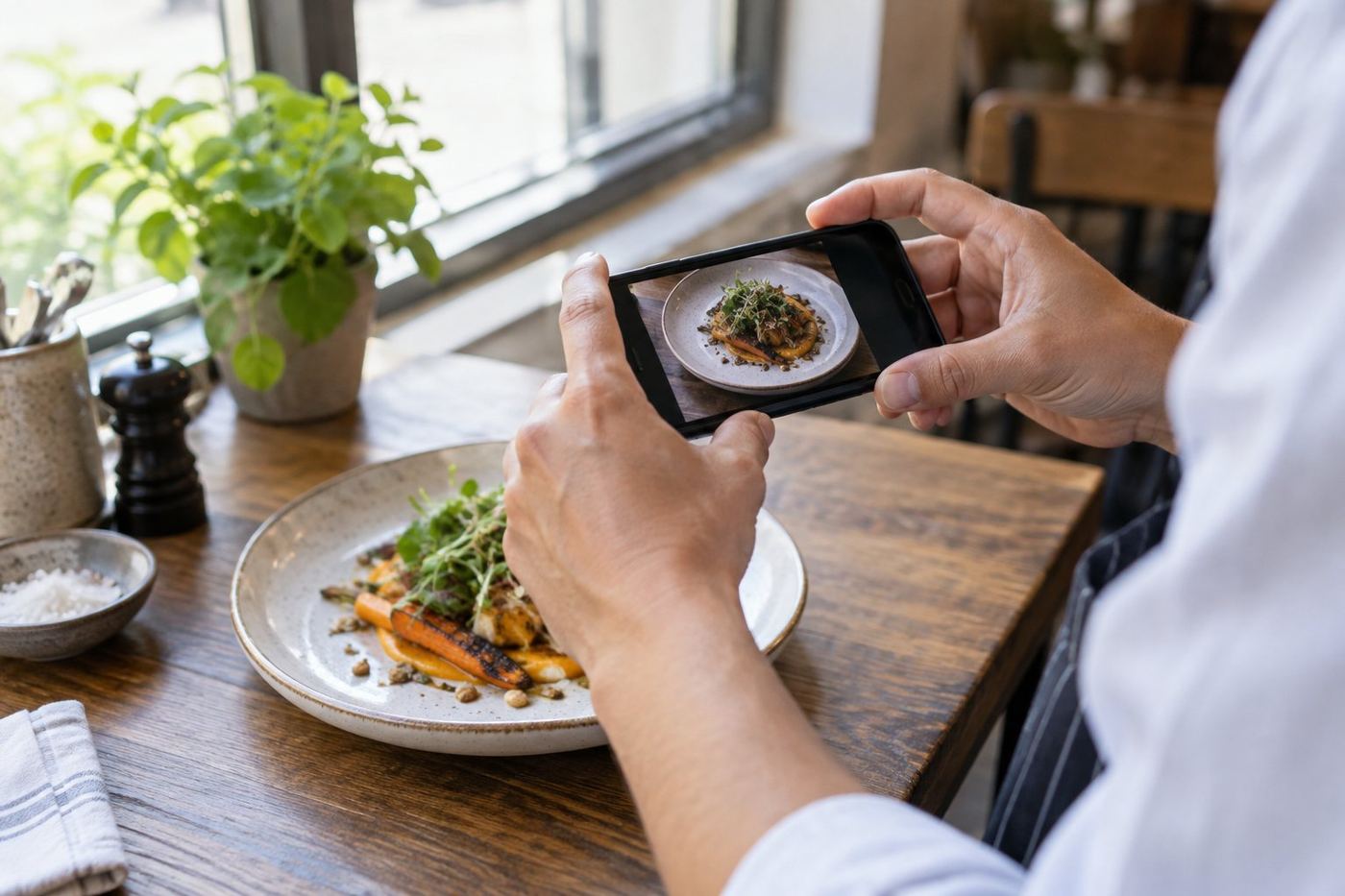
Fix: retake the photo of your real dish, on its own, with nothing added on top. Our guide to food photos on your phone helps.
5. The cover image doesn't look right
The cover image at the top of your store has its own rules: 2880 × 2304 pixels, 5:4, JPG, filling the whole space with no empty margins, and no logos or text apart from your store name (Uber's cover image guide).
Fix: crop a landscape food photo to exactly that size. See choosing your banner photo.
6. You uploaded it, but it isn't showing yet
Because photos are reviewed, they can take longer to appear than a name or price change.
Fix: wait, then check the item again in Uber Eats Manager before uploading a second copy.
7. The upload button does nothing
This is usually the browser, not the photo.
Fix: use Uber Eats Manager on a computer, update your browser or try another one, and reload the page. If it still fails, contact Uber Eats support from Uber Eats Manager. Our guide to editing your menu in Uber Eats Manager shows where photos are added.
Check it in your browser
Our free Uber Eats photo checker checks the file type, file size, pixel size and shape, and can crop and resize a photo to 2880 × 2304 for you. Nothing is uploaded.
Quick checklist before you upload
- JPG, under 10 MB.
- 2880 × 2304 pixels, or at least 550 × 440, in a 5:4 shape.
- One real dish, centred, nothing written on it.
- Sharp and bright.