Sign in to Uber Eats Manager
Go to merchants.ubereats.com on a computer and sign in with your restaurant account. The menu editor is easier to use on a computer than on a phone.
Change an item's name or description
- Click Menu in the left side menu.
- Open the menu you use for delivery.
- Click the item you want to change.
- Edit the name and description, then click Save.
Add or replace a photo
- Open the item in the menu editor.
- Click the photo area.
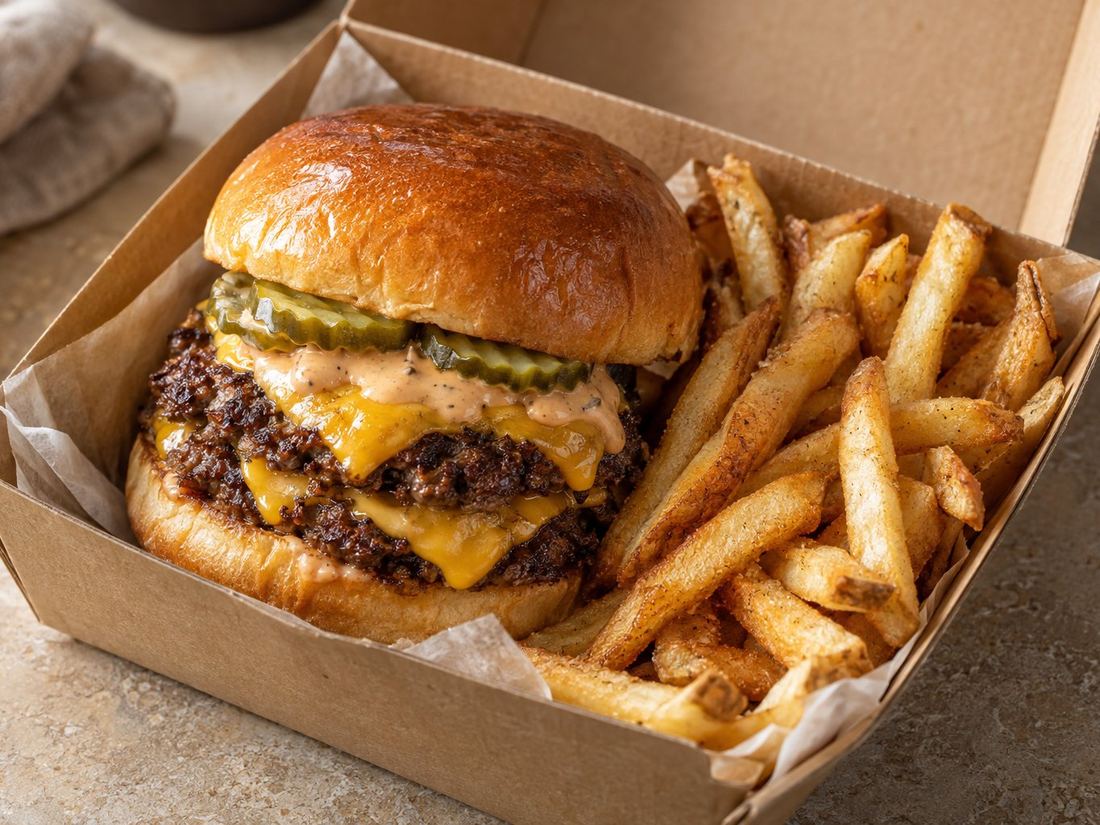
- Upload your new photo. Use a landscape photo with the dish in the centre.
- Save, and check how it looks on the app once it's live.
Reorder categories and items
In the menu editor you can drag categories and items into a new order. Put your best sellers and most popular category first.
Publish your changes
Depending on your setup, changes may save straight away or need you to click Publish. They usually show on the app within a few minutes.
Let someone help, without sharing your password
If someone helps you with your page, don't give them your password. Instead, add them as a user:
- In Uber Eats Manager, open Settings, then Users (sometimes called Team).
- Add a new user with their email address.
- Give access to the Menu only.
You can remove their access any time. This is exactly how our Done for you service works.
Prefer not to do it yourself?
With our Full Makeover, we make every change on your Uber Eats page for you. With Menu Fix and Menu and Photos, we send everything ready to copy with a simple guide like this one.