Before you start: check the photo
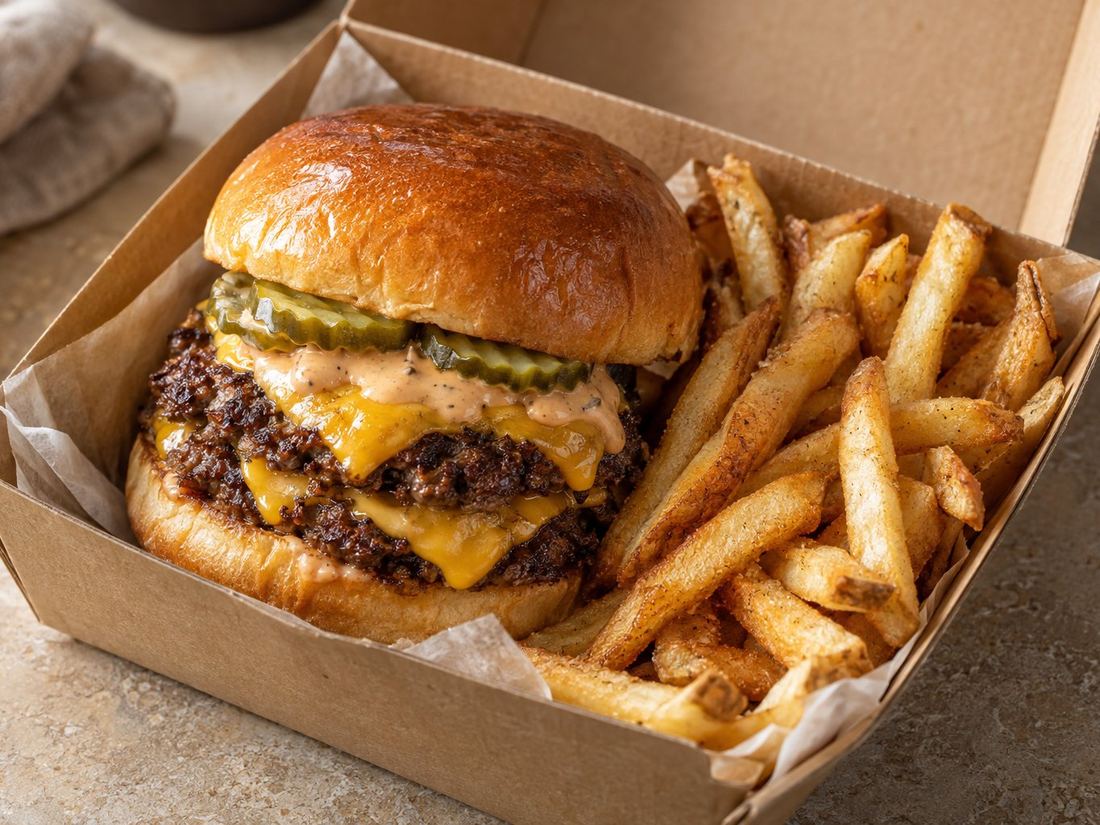
Uber's menu photo guidelines ask for a 5:4 landscape photo, ideally 2880 × 2304 pixels (at least 550 × 440), as a JPG under 10 MB, showing one real dish with no text, logos or faces. Our free Uber Eats photo checker checks the size and shape in your browser and can crop it to 5:4 for you. Every rule is in our Uber Eats photo size guide.
How to add a photo to a menu item
These steps follow Uber's help page on adding menu photos:
- Sign in to Uber Eats Manager and open Menu Maker.
- Go to Overview and click the menu item.
- In the Edit item panel, find Photo.
- Drag your photo in, or click Browse files and choose it.
- Click Save once it has uploaded.
- Click Request Approval when Uber asks.
Button names can change a little between versions of Uber Eats Manager. Uber's help page on editing your menu has the current layout.
After you upload
Uber reviews every photo before it appears, so it takes longer than a name or price change. If a photo is turned down, Uber tells you why. The usual reasons are text or logos on the image, more than one item, or a blurry photo.
Photo won't upload?
File too big, the wrong format (like HEIC from an iPhone) or the wrong shape are the common causes. Our guide to Uber Eats photo upload problems goes through each fix.
Which photos to add first
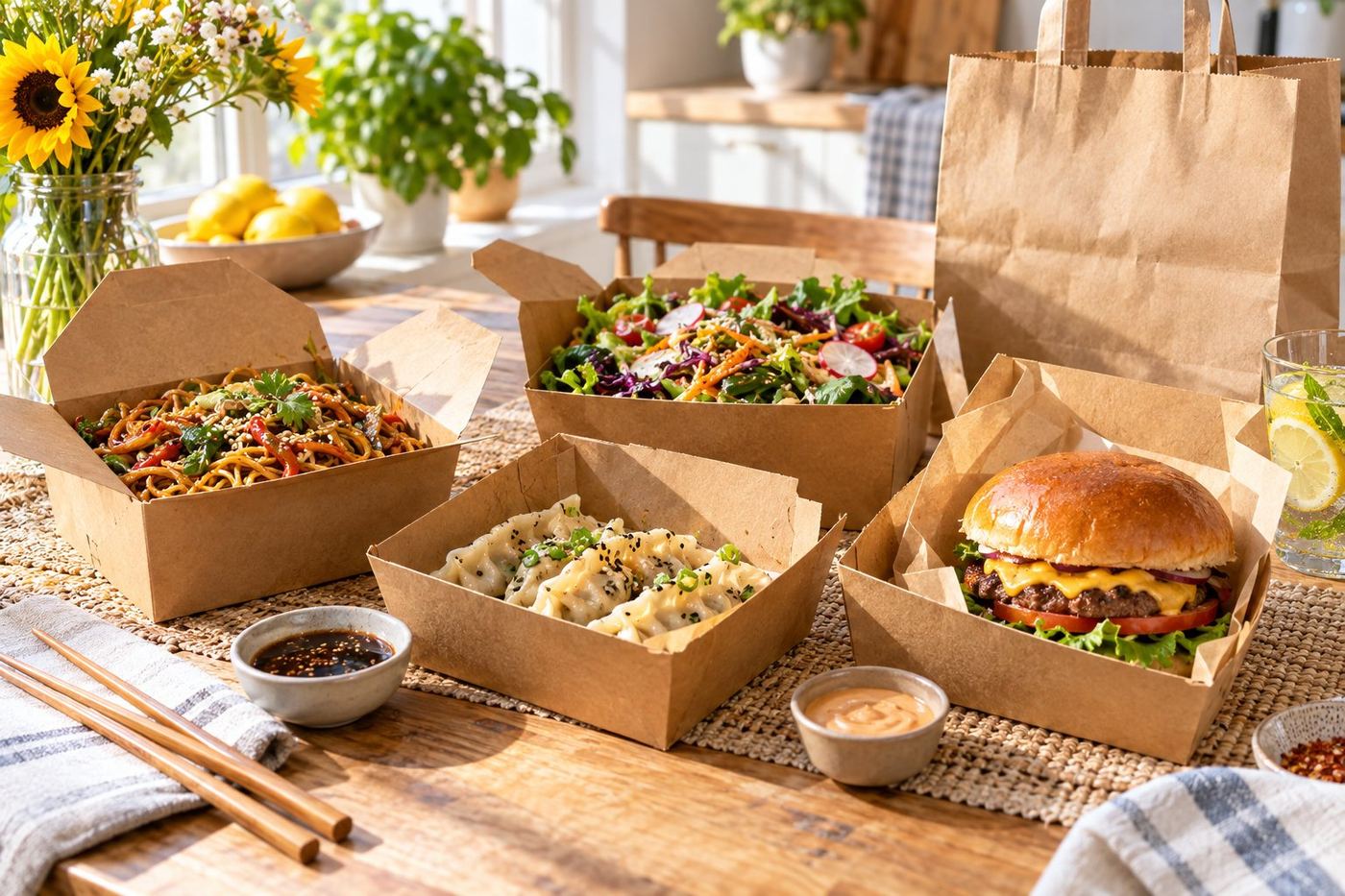
Start with your ten best sellers, then the rest of the menu. Take them in daylight, with the same background and angle for every dish. Our guide to food photos on your phone shows how, and the banner photo guide covers the big photo at the top of your page.