1. Sign up with what Uber asks for
Start on the Uber Eats sign up page with your business name, address and contact details. Uber's help page on documents for sign up lists what to have ready:
- an up to date copy of your menu, with prices and descriptions;
- your opening hours;
- a business or food licence.
Uber's merchant terms say your location is added only after you provide the documents and information Uber requests and Uber approves it. Have everything ready before you start, so you can finish in one go.
2. Don't copy your old menu across as it is
Your menu is the part of your new page you control completely, and a fresh page is the easiest moment to get it right:
- Best sellers first. Put the five or six dishes people order most in your first category.
- Names people understand. Keep your signature names, and add what the dish is.
- A short description for every dish. One line with the main ingredients is enough. Our guide to menu descriptions has examples.
- Short, logical categories. Group the menu the way people order. See how to set up your categories.
- Correct prices, sizes and options. Build combos and add ons carefully and place a test order if you can.
3. Photos that pass Uber's review
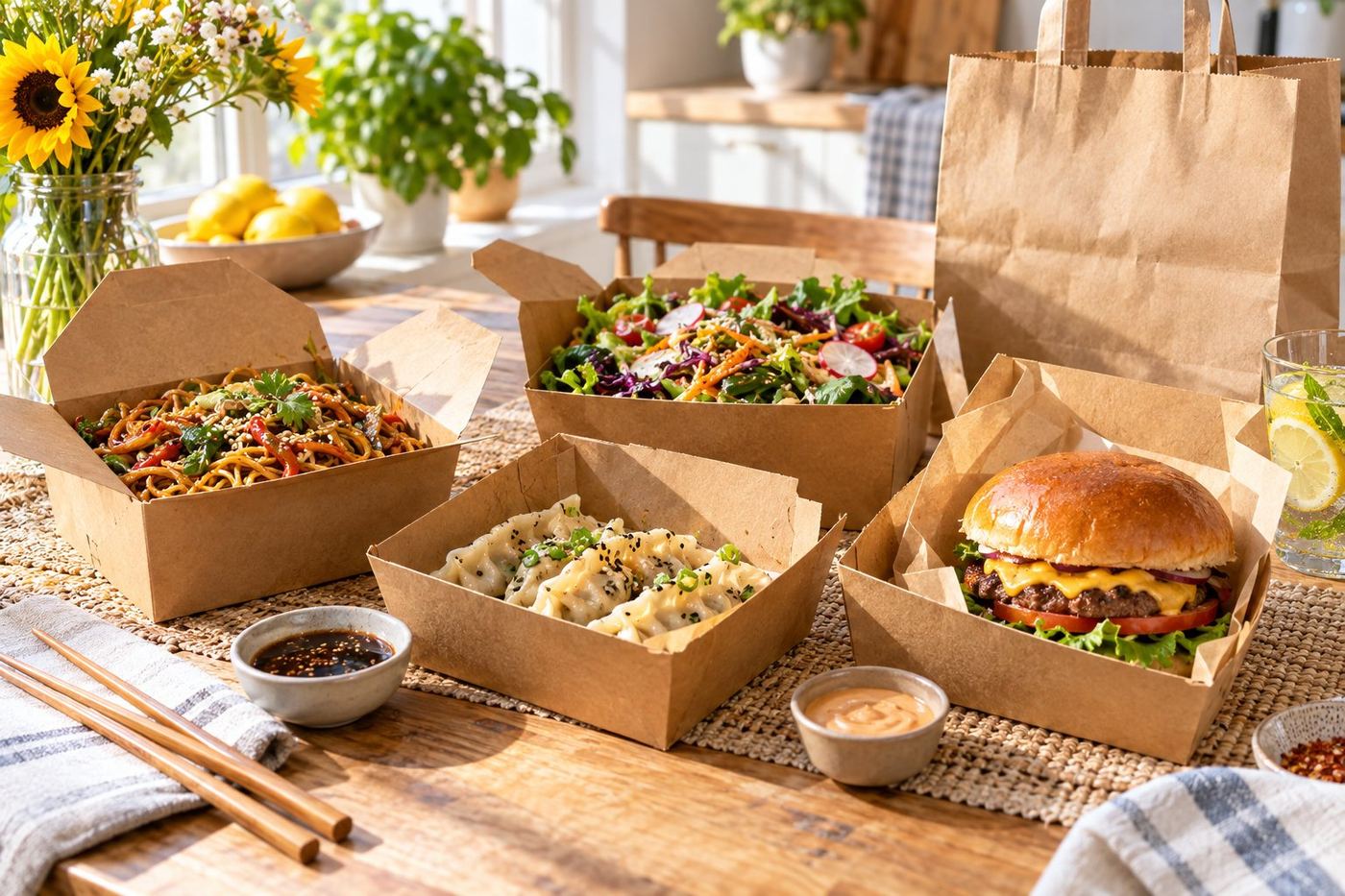
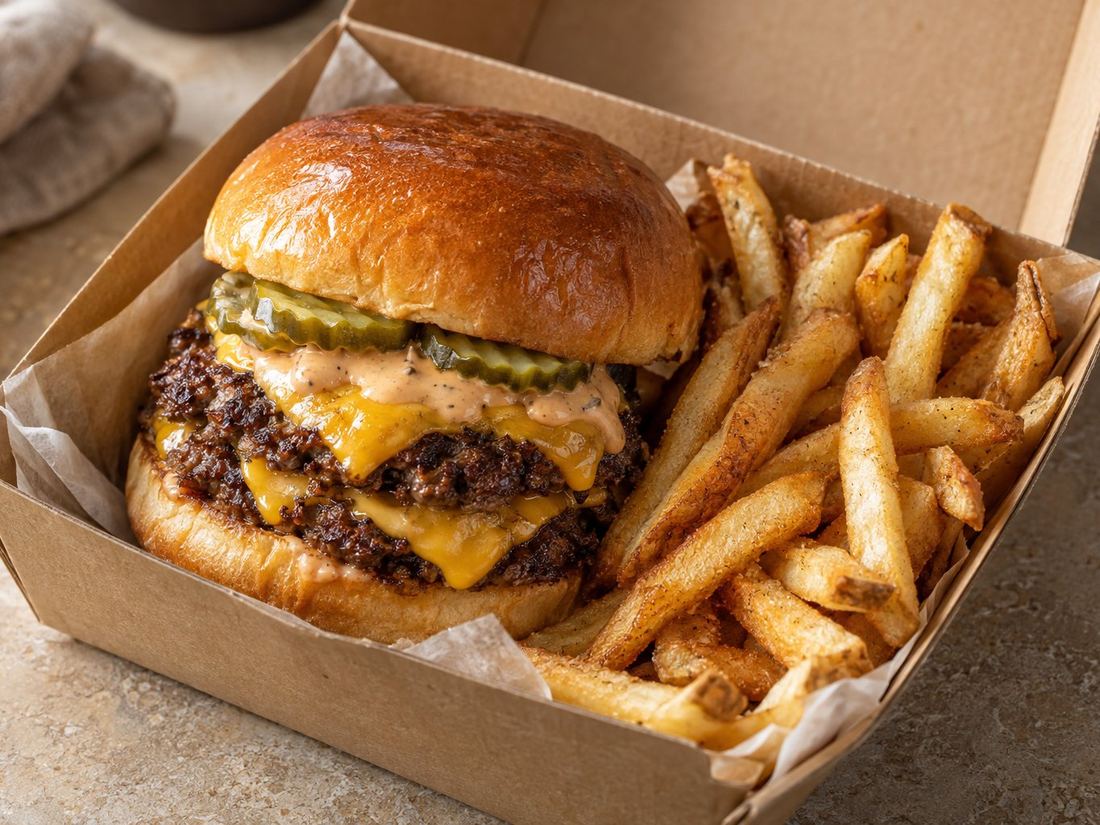
Uber reviews every photo before it goes live. Its menu photo guidelines ask for:
| What | Uber's requirement |
|---|---|
| Shape | 5:4, landscape |
| Recommended size | 2880 × 2304 pixels |
| Minimum size | 550 pixels wide, 440 pixels tall |
| File | JPG (PNG and GIF also accepted for menu items), up to 10 MB |
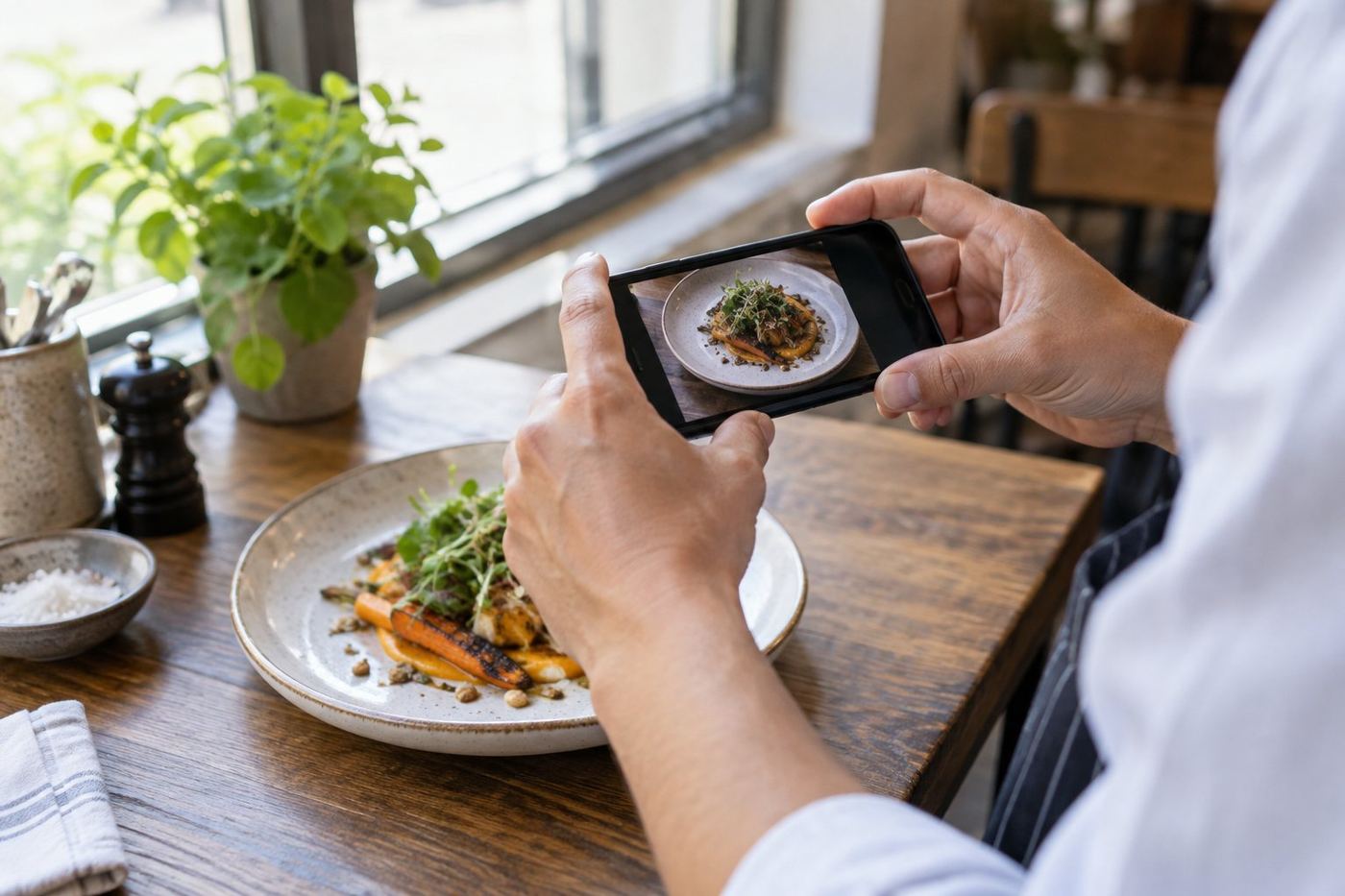
| Content | One menu item, as served, centred. No text, prices, logos, watermarks or faces (hands are fine) |
Photos made for another app can be a different shape. Crop again from your original photos to 5:4 rather than stretching an old crop. Start with your best sellers. Our free photo checker tells you if a photo has the right size and shape.
4. A cover image that shows your food
Uber's guide to cover images and menu photos asks for 2880 × 2304 pixels, a 5:4 shape, as a JPG, filling the whole size, showing food customers can actually buy, with no logos or text apart from your store name. Our guide to choosing your banner photo helps you pick the dish.
5. Plan your first weeks
A new page has no ratings yet, so what people see on it does the work. Our first weeks checklist covers the rest: hours that match when you can really cook, pausing sold out items, and reading every review.
6. Fees: check your own agreement
Uber's pricing page lists its current fees. What you actually pay is in your own agreement, so check it there, including any special terms Uber has offered you.
Sources
Everything above about Uber Eats comes from Uber's own merchant pages: the sign up page, documents for sign up, the merchant terms, the menu photo guidelines, cover images and menu photos and the pricing page. Uber can change them, so check those pages if something doesn't match.
See where your new page stands, free
Once your Uber Eats page is up, our free Uber Eats page check looks at it for you: a score from what's on your page and the three fixes that matter most, by email. No card, no login.