1. Claim and verify your profile
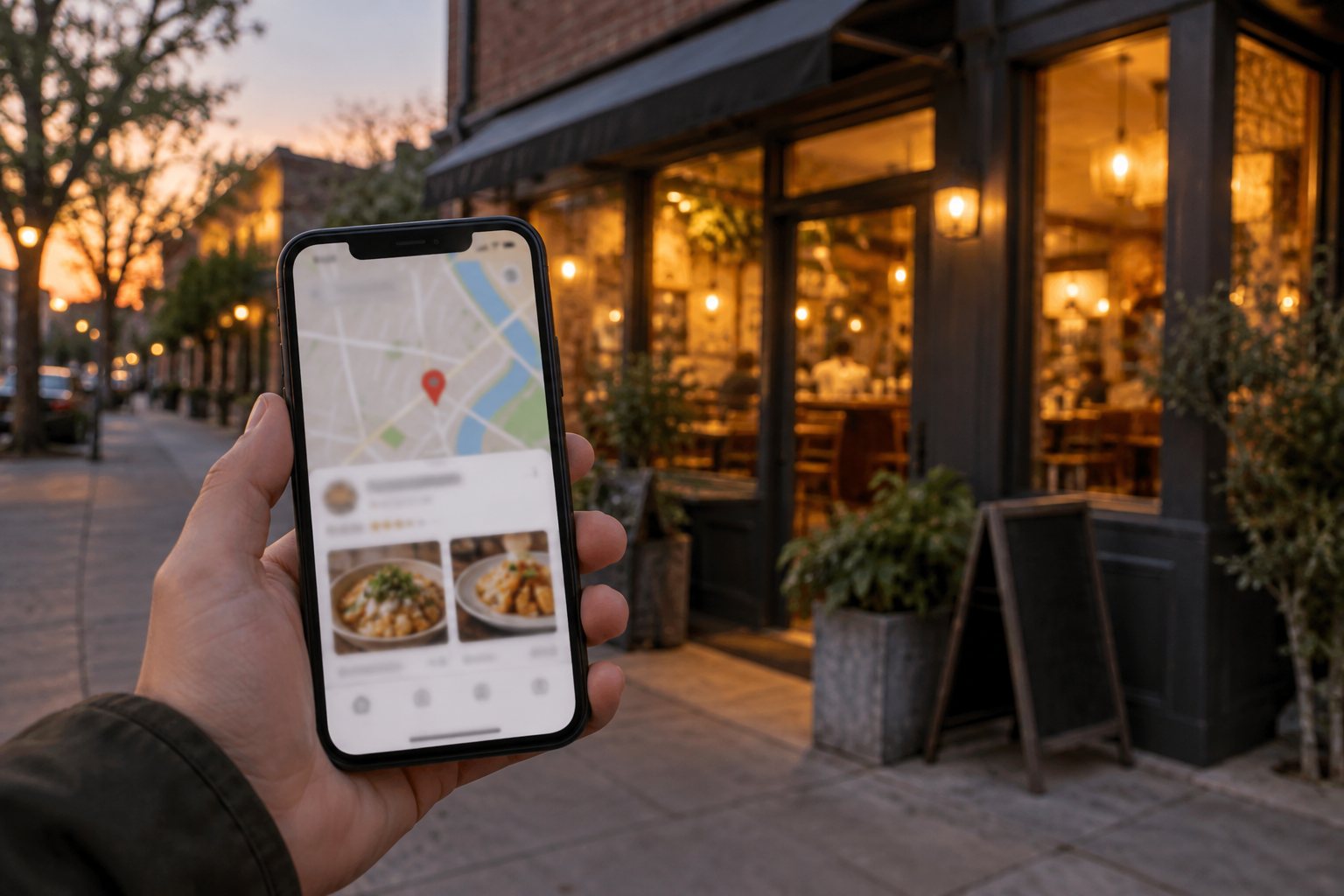
Search for your restaurant on Google. If a profile already exists, choose Own this business; if not, add it. Google will ask you to verify that you own it, usually by phone, email or a short video. Until it is verified, you can't control what it shows.
2. Choose the right main category
Google uses your main category to decide which searches you appear in. "Restaurant" is too general: choose the most specific one, like Turkish restaurant, Pizza takeaway or Café. Add two or three more categories only if they are true.
3. Hours, holiday hours and services
Wrong hours lose customers and bring bad reviews. Add your normal hours, special hours for holidays, and say whether you offer dine in, takeaway and delivery.
4. Your menu and your best real photos
- Add your menu with prices, or a link to it.
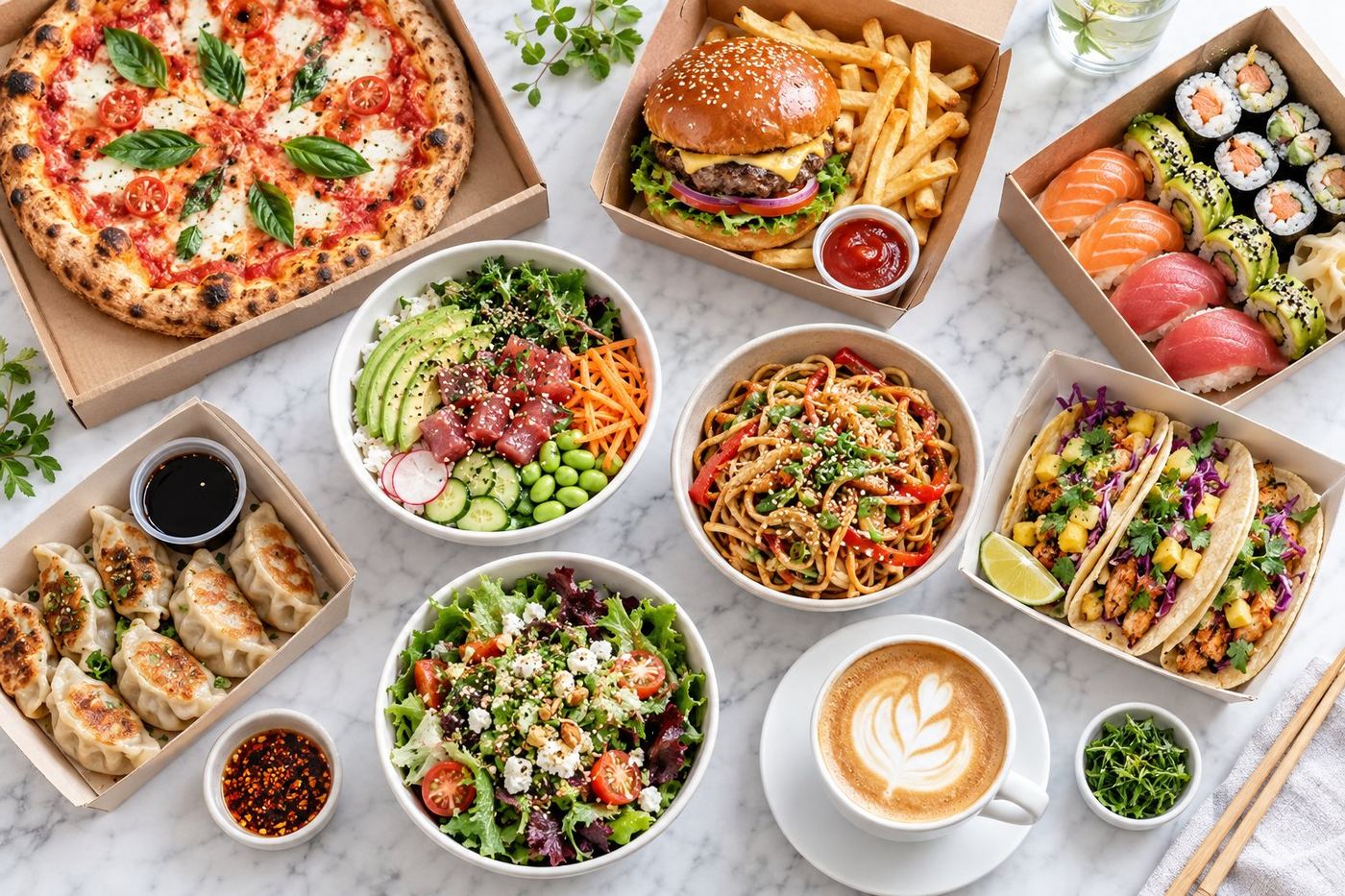
- Upload at least ten real photos: your best sellers, the inside and the outside. Customers trust photos that match what they get. See food photos on your phone.
- Add new photos every month. A profile that changes looks alive.
5. A description with the words people search
Write two or three sentences about what you serve and where: "Family run Lebanese takeaway in Rochdale: chicken shawarma, falafel wraps and mezze, made fresh every day." Use the words a hungry customer would type.
6. The order button
Add an order link so people can order straight from Google. Point it to your own website if you take orders there, or to your Uber Eats page.
7. Reviews and replies
Ask happy customers for a review, and reply to every review: a thank you for good ones, a calm and short answer to complaints. Our guide on replying to reviews works for Google too. Never offer anything in exchange for a review.
Let us do it for you
You can do all of this yourself in about an hour. Our focus is your Uber Eats page: photos, names, descriptions and prices that turn visits into orders.