How to add an item, step by step
- Sign in to Uber Eats Manager at merchants.ubereats.com. A computer is easier than a phone.
- Open Menu. If you have several menus, choose the right one.
- On the overview, click Add, then Add item.
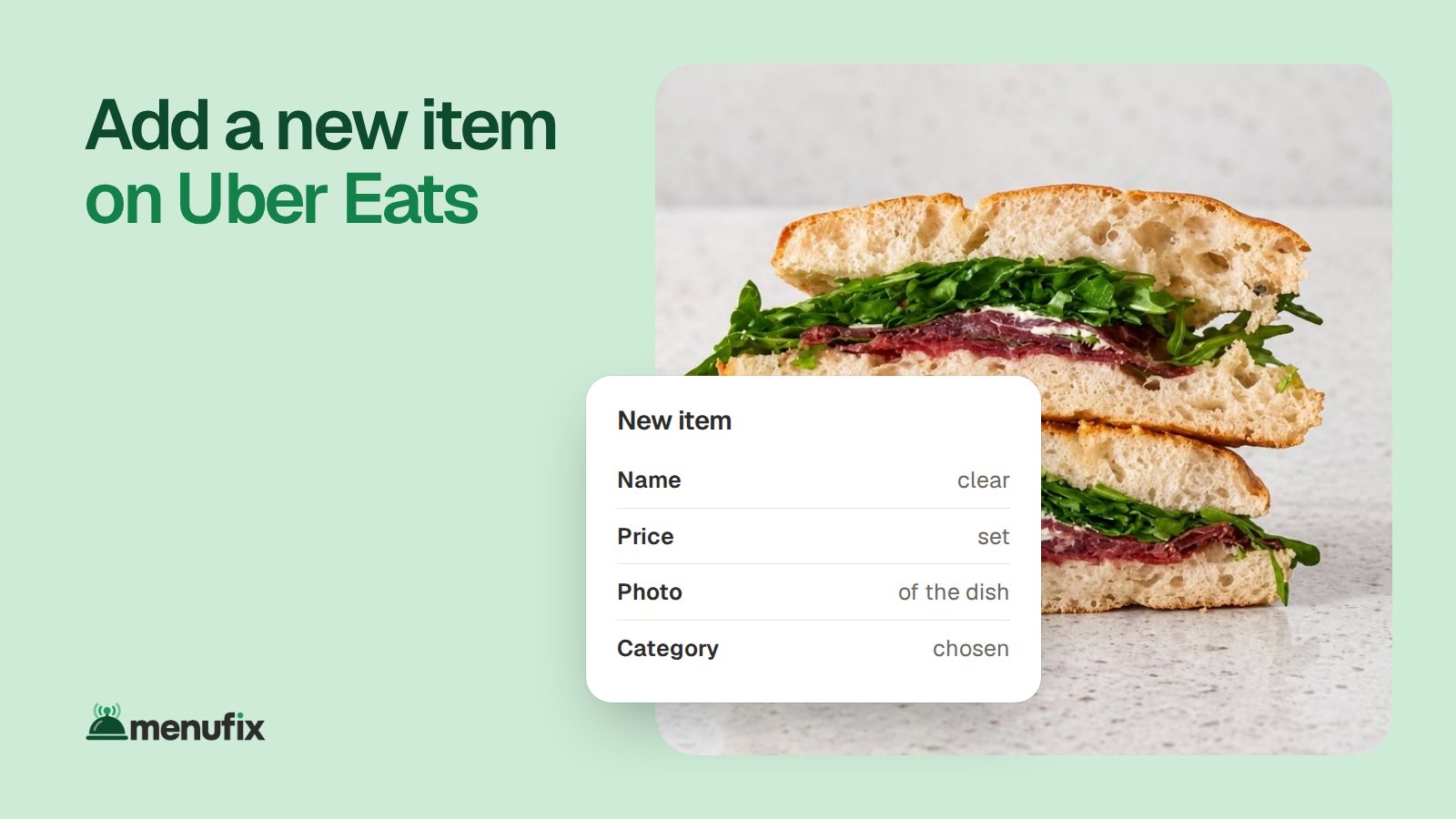
- Fill in the name, description, price and photo, and choose the category.
- Add the modifier groups the dish needs, such as size or sauce.
- Click Save, then open your page in the Uber Eats app to see what customers see.
These steps follow Uber's own help on managing your menu in Menu Maker. Names of buttons can change and differ by country, so check the current steps in Uber Eats Manager.
If your menu comes from your POS
When your POS sends your menu to Uber Eats, Uber's help says to change the menu in the POS, not in Menu Maker. Otherwise the next update from the POS may replace what you typed. Uber also says some businesses with several locations can't use Menu Maker and update their menu through their integration. Not sure? Ask your POS provider before you start.
What to fill in before you save
- A clear name. Say what it is: Crispy Chicken Burger, not Special 7.
- A short description. The main ingredients and how it is served. See how to write menu descriptions.
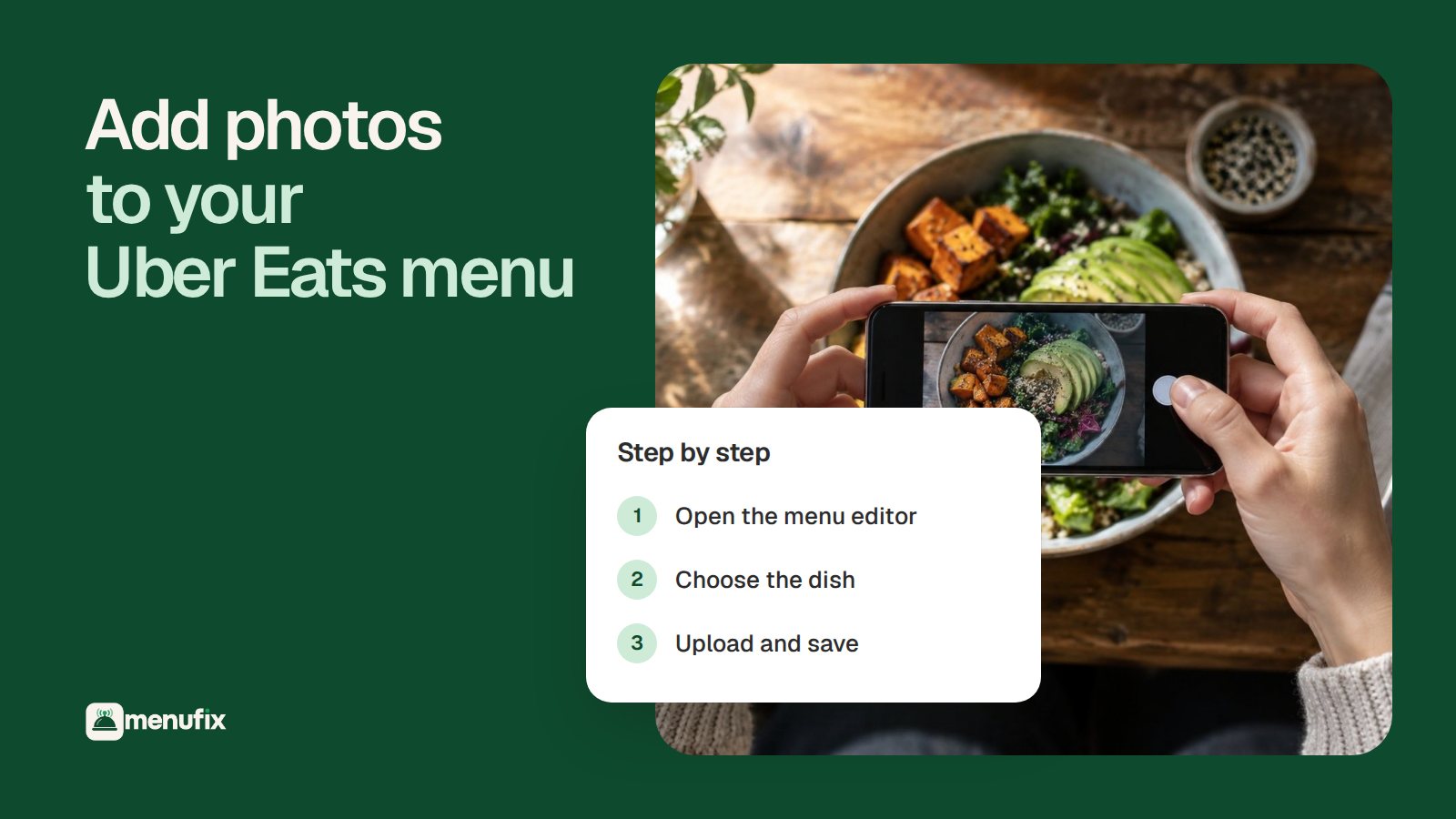
- A photo of the real dish. One dish, in good light, as customers receive it. See how to add photos.
- The right price. Work out what is left after the fee, the food and the packing.
- One sensible category. Where a hungry person would look for it.
- Its choices. Size, spice level, extras and sides. See Uber Eats menu modifiers.
- True dietary and allergen details. Only state what your kitchen can stand behind.
How soon the new item shows
When Uber introduced Menu Maker it said most changes, such as adding an item, apply right away. Two things can take longer: photos, which are reviewed before they go live, and price changes, which can be held for a review. Timing can change, so check the status in Uber Eats Manager and plan ahead if the dish is for a weekend or a holiday.
Why a new item doesn't show up
- It isn't in a category, or the category isn't on the menu you use for delivery.
- The menu is closed at this hour. A dish on the breakfast menu won't be there at dinner.
- It is marked sold out. See sold out items on Uber Eats.
- The POS replaced your change. Add the dish in the POS.
- You are looking at an old page. Close the app, open it again and look once more.
If it still doesn't show, contact support in Uber Eats Manager.
Before you add another dish
A longer menu is not always a better one. Before you add a dish, ask whether it travels well, whether your kitchen can make it in the rush, and whether an old dish nobody orders can go. Put a new dish near the dishes people already choose, not at the bottom of the page.
Want us to do it for you?
We write the names and descriptions, make photos of your real dishes clear and bright, sort your categories and update your page inside Uber Eats Manager. You add us as a user and never share your password. Start with our free Uber Eats page check, or see our plans. MenuFix is independent and not part of Uber.