DoorDash photo sizes at a glance
| Photo | Smallest size | Shape | File |
|---|---|---|---|
| Menu item | 1400 × 800 pixels | 16:9 landscape | Under 2 MB to be safe (see below) |
| Header | 1400 × 800 pixels | 4:1 on the web, 16:9 in the app | Under 2 MB |
| Logo | 230 × 230 pixels | Square recommended | Under 2 MB |
| Collection header | 1400 × 800 pixels | 16:9 landscape | Under 20 MB, JPEG or PNG |
From DoorDash's pages on rejected menu photos and Collections, read on 23 November 2026.
2 MB or 16 MB? DoorDash says both
The same DoorDash page gives a maximum of 2 MB for a menu photo near the top, and under 16 MB for item photos in the list at the end. DoorDash's developer page for photos sent by a POS says 2 MB, in JPG, JPEG or PNG. We would stay under 2 MB: it passes both.
One size that works: 1600 × 900
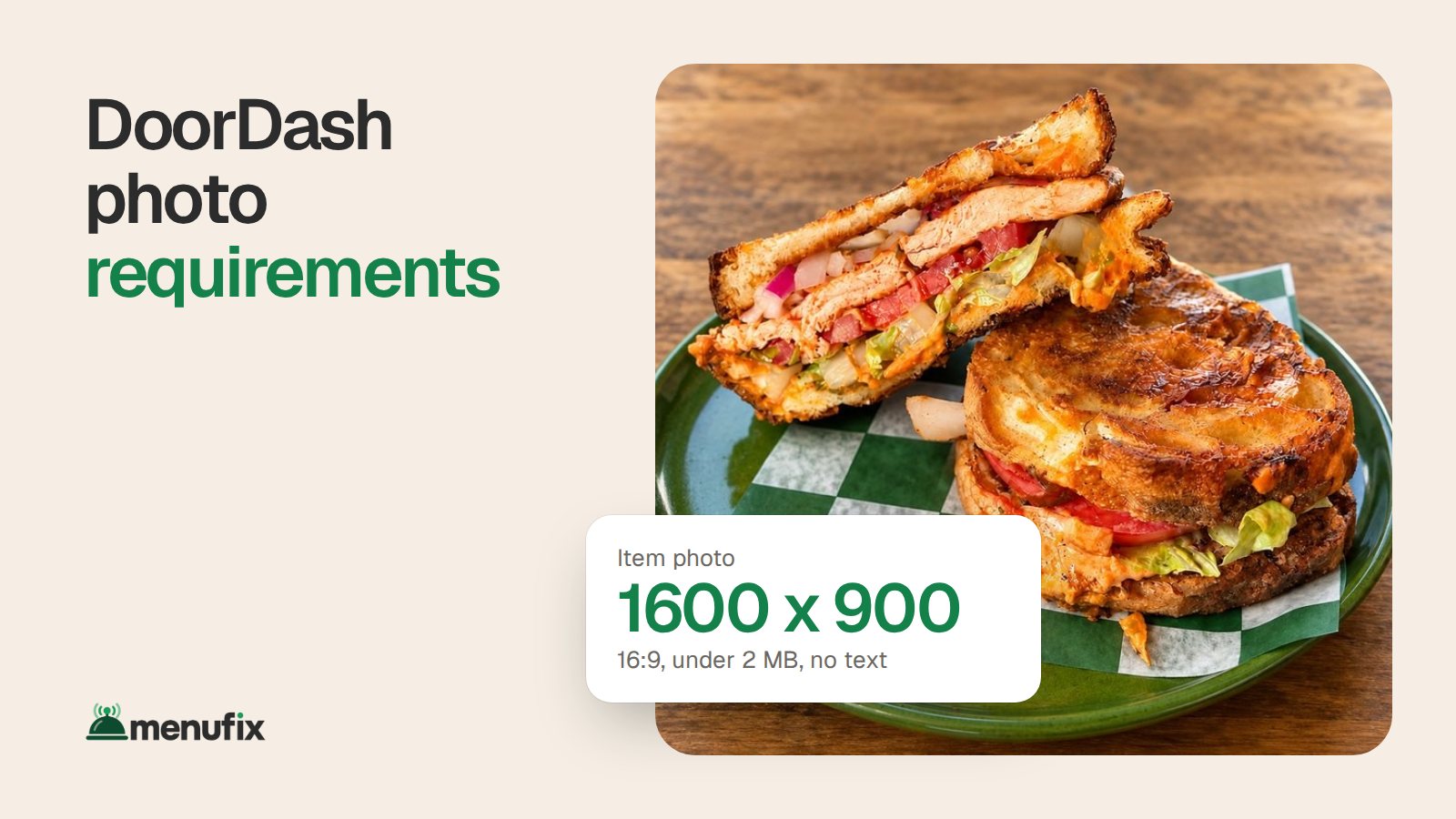
1400 × 800 is the minimum, but it is not exactly 16:9. Cut a 16:9 photo to 1400 pixels wide and it is only about 788 pixels tall, which is below 800. So make it a little bigger: 1600 × 900 pixels is exactly 16:9 and above both minimums. Save it as a JPG and check that it is under 2 MB.
- On a Mac: right click the photo, then Get Info, and look at Dimensions.
- On Windows: right click, Properties, then Details.
- Too small? Take it again. DoorDash says not to enlarge small photos, because they get blurry.
The square problem
You upload a wide photo, but DoorDash says menu thumbnails appear as a square from the middle. So the dish must look right in both. On a 1600 × 900 photo, the square in the middle is 900 pixels wide: keep the whole dish inside it, with a little light space around it.
What every item photo must show
- One item, unless the items are sold together.
- At least 80% of the dish in the frame, so people see the portion.
- The dish fills 50 to 70% of the photo, on a simple, natural background.
- Bright, even light, no hard shadows.
- Your real dish, as the customer gets it.
- Your own photo: no stock photos and nothing copied from a website.
All from DoorDash's help page.
Why DoorDash rejects photos, and the fix
| Reason | Fix |
|---|---|
| Too small or over the size limit | Use 1600 × 900, under 2 MB |
| Vertical or square | Turn the phone sideways and take it again. Don't stretch it |
| Too close or too far | Show the whole plate, bowl or bottle |
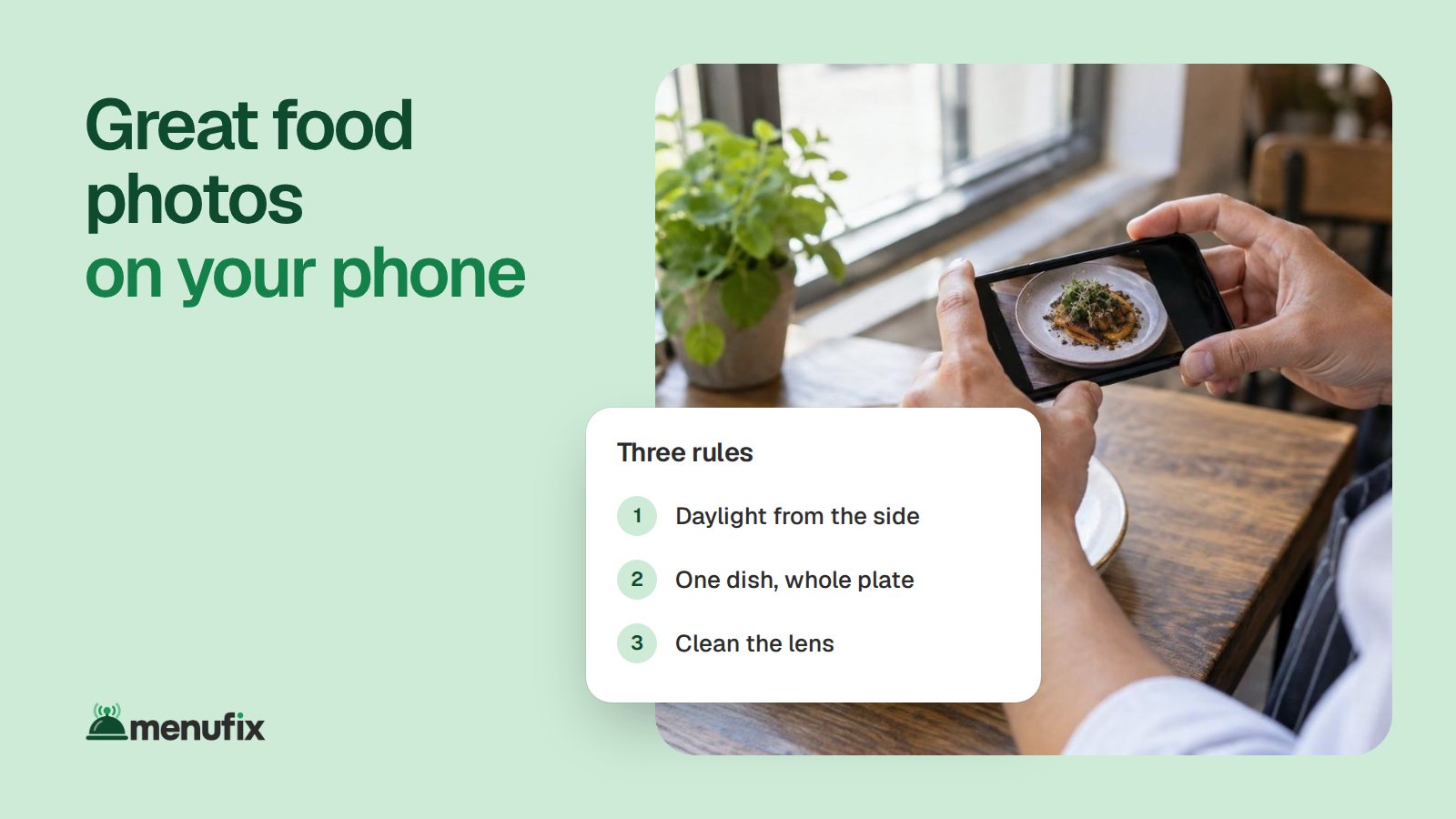
| Dark, or too bright | Stand next to a window, not between the light and the food |
| Busy, colorful or edited background | A plain table, counter or tray |
| Text, border, logo or watermark added | Upload the clean photo. A logo printed on the cup is fine |
| People | No faces or bodies. Hands only if they don't take attention from the food |
| Several dishes in one photo | One photo for each dish sold alone |
| Same photo on two dishes | A beef taco and a chicken taco each need their own |
| Blurry | Tap to focus, rest the phone on something |
The reasons are DoorDash's. Some of the fixes are our own words. See also food photos with your phone.
How to upload or replace a photo
- Log in to the Merchant Portal and open Menu.
- Click the item.
- Drag in your file, or choose one from the photo library.
- The photo editor opens. You can crop, change the light and remove text.
- Look at the preview, then submit.
On a phone, from Instagram or with a POS: how to add photos to a DoorDash menu. For the logo and header, go to Settings, then Store Settings. The steps are on DoorDash's page about adding photos. If your menu comes from a POS, ask your POS company first: DoorDash has a way for the POS to send the photos too.
When a photo is rejected
- Read the email from DoorDash. It says why.
- In the portal, open Menu Manager and look for the notice at the top of the menu.
- Choose View items, open the item and read the reason.
- Fix the photo, then choose Add new photo.
If you don't see why, send the wide original again, cut to 1600 × 900 and with nothing edited on it.
A photo on your menu that isn't yours?
When an item has no photo, DoorDash may add one, for example from a linked Instagram business account or from Yelp. It says it never replaces photos you upload. Upload your own and it takes the place of theirs, or ask Merchant Support to opt out.
Can you use AI photos on DoorDash?
On the photo pages, DoorDash asks for real photos of your actual item and no illustrations or stock graphics. Its rules for virtual brands go further: images that are evidently made by AI, or heavily changed, are not permitted. Making your own photo brighter is different from inventing a dish. Never show food that won't arrive. More: AI food photos on delivery apps.
DoorDash and Uber Eats photos side by side
| DoorDash | Uber Eats | |
|---|---|---|
| Shape | 16:9 landscape | 5:4 landscape |
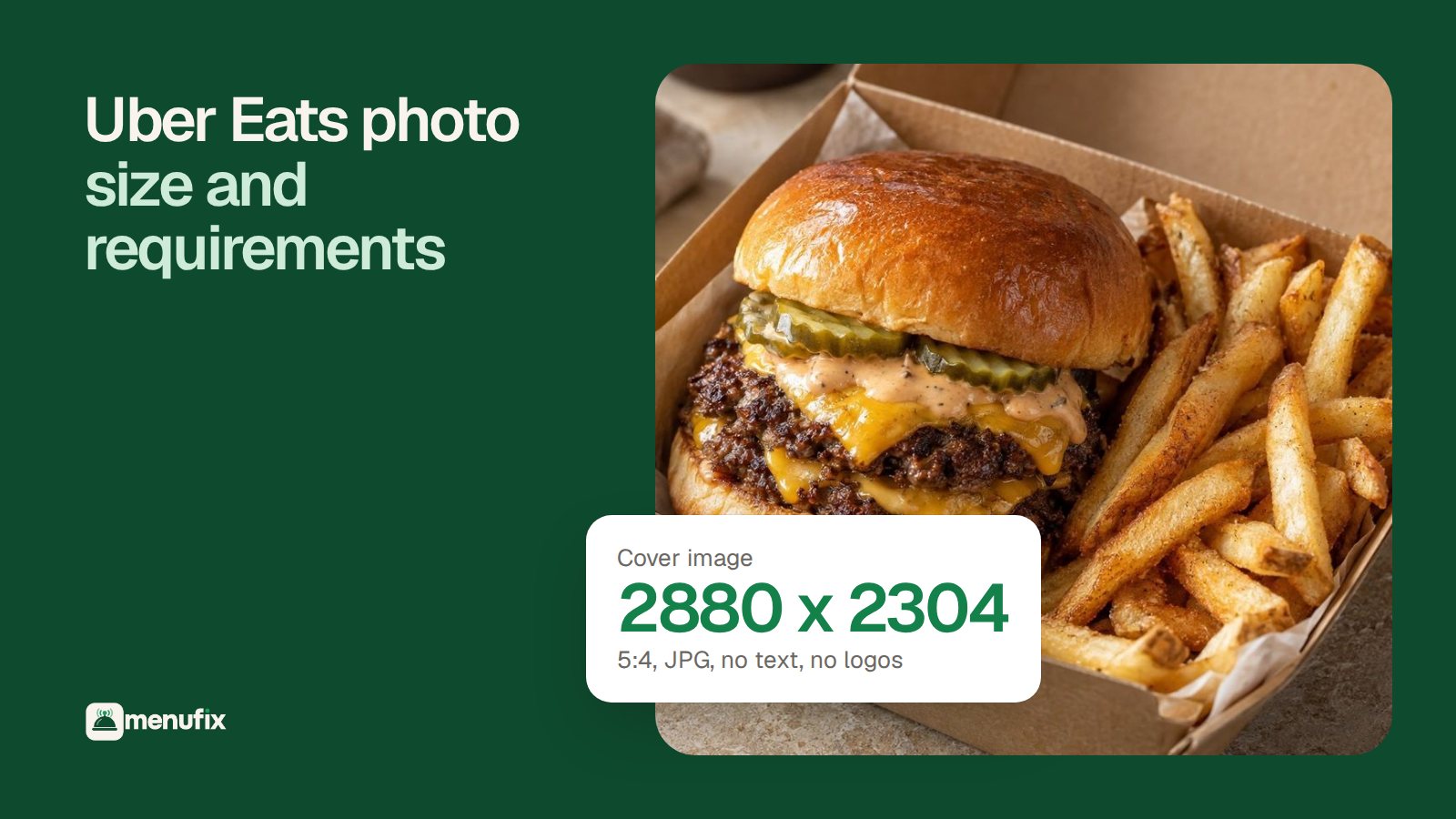
| Size | At least 1400 × 800 | 2880 × 2304 recommended |
| File | Under 2 MB to be safe | Up to 10 MB |
| Small picture | Square from the middle | Square from the middle |
Take one big photo with space around the dish and keep the original. Cut it to 5:4 for Uber Eats and to 16:9 for DoorDash. A 2880 × 2304 photo cut to 16:9 is 2880 × 1620 pixels. Make a smaller copy under 2 MB. Every Uber Eats rule: Uber Eats photo size and requirements.
Before you pay a photographer
DoorDash offers a free menu photoshoot on its plans. It says eligible restaurants get up to 20 photos of their most popular dishes. Ask DoorDash if your area has it. One thing to know: DoorDash says not to use those photos on other delivery apps.
Is your page on Uber Eats, Wolt or Bolt Food too?
Those are the pages we work on. We start from photos of your real dishes and make them clear and bright, rewrite the names and descriptions and update your page. Our free page check shows the 3 things to fix first. MenuFix is independent and not part of DoorDash or Uber. DoorDash can change its rules, so look at its page if a photo is rejected.